/
MCP Guides
Introducing Alpic MCP and CLI: two interfaces, one platform
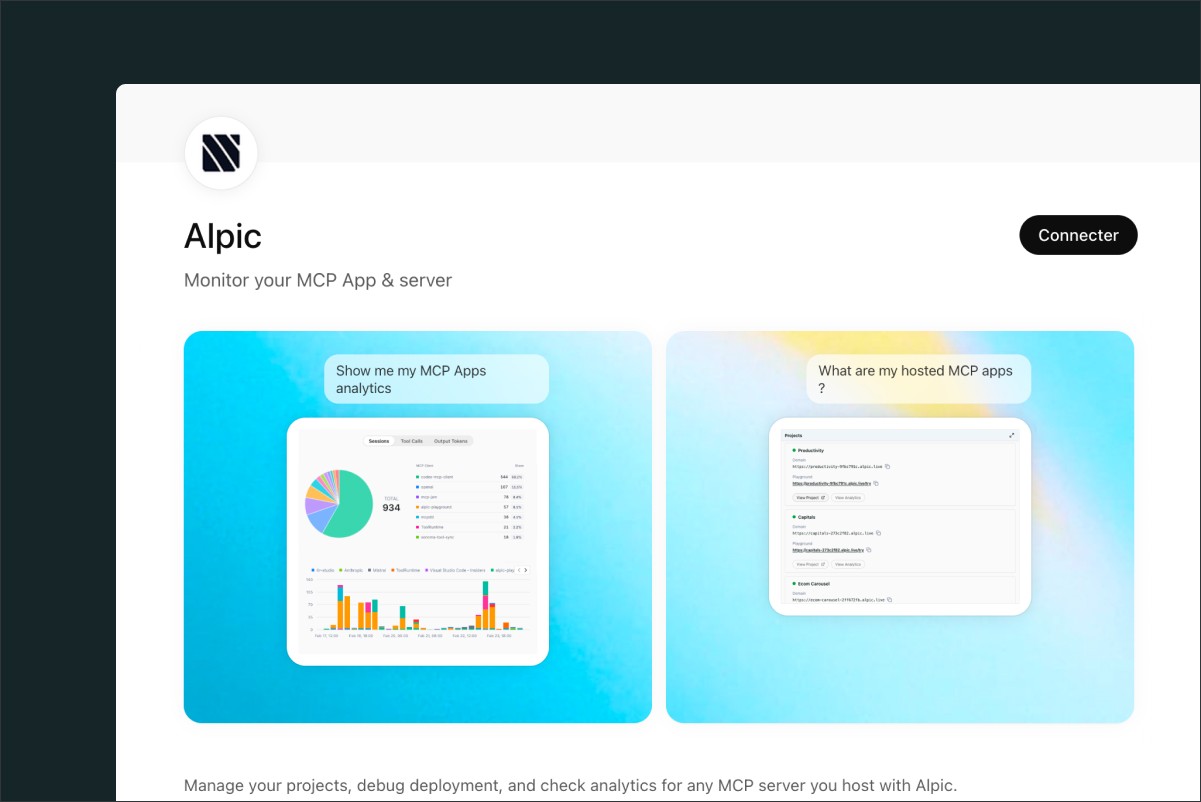
This week we shipped two new ways to interact with the Alpic platform. The MCP app connects to your AI client of choice for querying analytics and monitoring deployments. The CLI covers the full deployment lifecycle, from linking a project to publishing it. They're built for different jobs and different people, no overlap.
Read on!
Alpic MCP app
Alpic is an MCP infrastructure company, so using MCP to interact with our own platform felt like the obvious thing to do.
The Alpic MCP server and MCP app let you manage your Alpic projects from any MCP-compatible client. Our server exposes four tools: list your teams, list your projects, pull deployment logs for a specific environment, and retrieve analytics (sessions, requests, errors) for any project.
We kept the scope tight on purpose. While tasks like deploying servers felt more natural in the dashboard or our CLI (more on that later this week!), we thought the analytics and monitoring experience could really benefit from an MCP interface. Our server therefore centered around how your app is performing: which tools are being called, how often, and where errors are showing up. Deployment logs round it out for when something breaks in production and you need answers fast. And of course, our app renders analytics and project cards as interactive widgets, making it a live example of what MCP apps can do.
Try it out today! Our ChatGPT App is already available on the ChatGPT App store, while setup instructions for Claude, Claude Code, Cursor, and VS Code are in the docs.
Alpic CLI
We already have an MCP server and app. So why build a CLI?
The short answer: they're not for the same thing, and they're not for the same people.
Two interfaces, two jobs
The Alpic MCP server and app are built around observability. You connect it to your AI client of choice, ask about your projects, check analytics, pull deployment logs. It works well for anyone who wants a quick read on how a server is performing without opening a dashboard. That includes business profiles who care about traffic and usage, in addition to developers deploying on the platform.
The CLI, on the other hand, is built for those doing the work under the hood. It covers the full deployment cycle: link a project, deploy, manage environment variables, stream runtime logs, publish to the MCP registry. It's operational, and it's squarely aimed at developers working in a terminal or running automated pipelines.
There's some overlap (deployment logs exist in both), but the intent diverges. The MCP app is for querying and analyzing; the CLI is for doing.
Designed to be agent-friendly, too
CLIs are traditionally built for humans: short command names, positional parameters, interactive prompts. That works fine when a person is typing. It works less well when an agent is.
We made deliberate choices to keep the CLI readable and predictable, whether you're a developer typing in a terminal or an agent running automated pipelines. Every command can return JSON output, so agents can parse results without scraping human-readable text. Command names are explicit and unabbreviated: deployment list, environment-variable add, so there’s no guessing what env or ls refers to. Interactive prompts are avoidable, so automated flows don't get stuck waiting for input that will never come.
The goal was for both coding agents AND humans to be able to use the Alpic CLI as a first-class tool.
That design pays off when paired with our Alpic Skill. An agent can now run the full deployment cycle on the platform autonomously: link, deploy, check logs, and iterate, without you ever touching the dashboard interface!
What the Alpic CLI covers
The CLI supports the full lifecycle: link to connect a directory to a project, deploy to ship it, deployment inspect and deployment logs to debug it, logs to stream runtime output, and environment-variable commands to manage configuration per environment. There's also publish to submit a server to the MCP registry, and tunnel to expose a local server for testing.
Authentication works via browser OAuth or an API key for CI/CD contexts.
Install it with npm install -g alpic or run it without installing via npx alpic. Check out the full documentation at https://docs.alpic.ai/cli/overview.
Liked what you read here?
Get our newsletter!